Step Type
The role of the step: warm-up, main effort, recovery, break, cooldown or other type available for the sport.
Build sessions step by step, choose when each interval ends, set your intensity and send your workout to your compatible Garmin device.

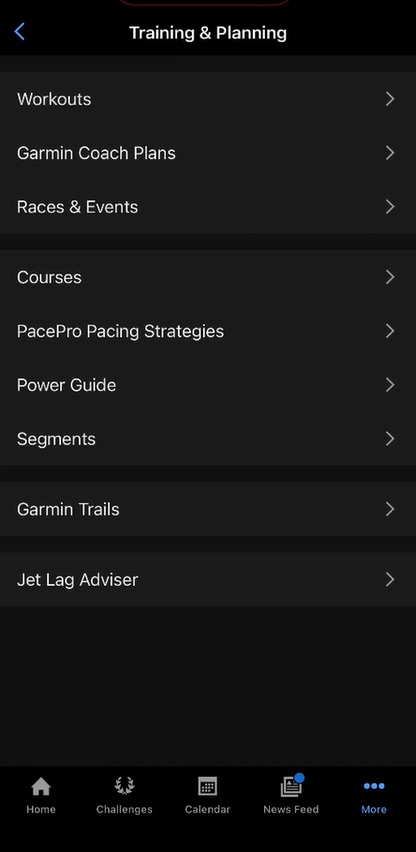
The editor is hidden in the planning area. From the bottom menu of the application follow the route:
Under Training & Planning you will find saved workouts, Garmin Coach plans, the calendar and other training tools. Open Workouts, then tap Create a Workout.
If you already have saved sessions, you can filter them by sport and edit, duplicate or send them back to the device.
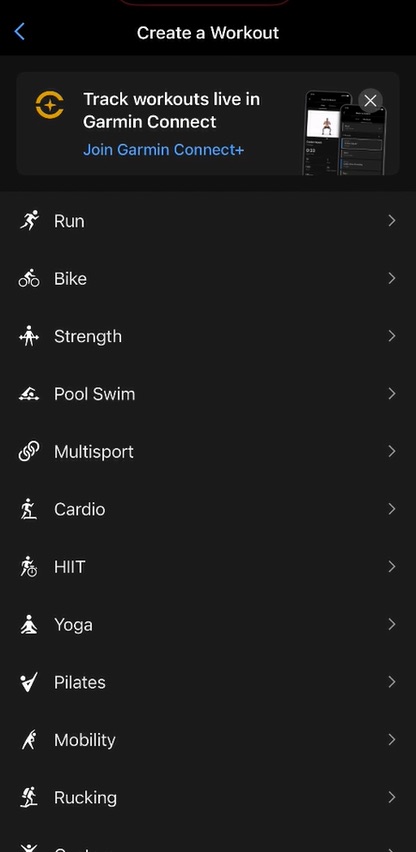
This guide focuses on Run, Bike and Pool Swim. Garmin can also display Strength, Multisport, Cardio, HIIT, Yoga, Pilates, Mobility, Rucking and other categories.
Why the choice matters: it determines the types of steps, units and targets you can use. A bike workout might have power targets, and a swim workout might have pool length, procedure, and equipment.
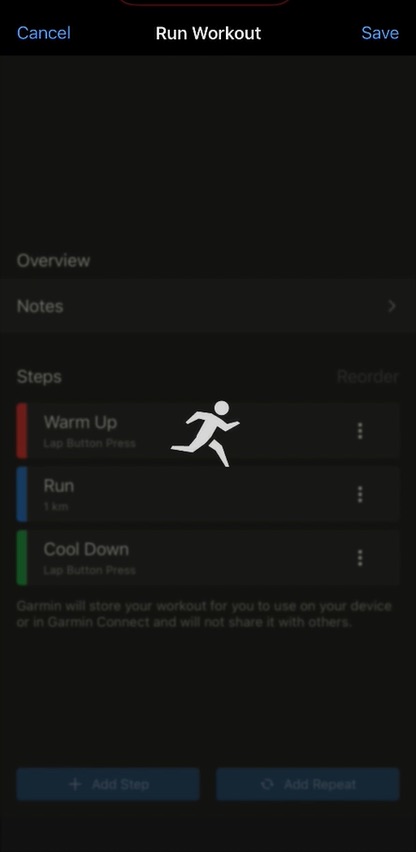
Every Garmin workout is a sequence of steps. Each step answers two questions: when does it end? and at what intensity should I perform it?
The role of the step: warm-up, main effort, recovery, break, cooldown or other type available for the sport.
Condition ending the step: time, distance, pulse, calories or pressing the Lap button.
Desired work interval: pace, pulse, cadence, speed or power, depending on the sport and device.
You can add written instructions in Add Notes. For compatible sports there is also an audio note of up to 15 seconds, played through Bluetooth headphones connected to the watch.
| Option | When the step ends | When it is useful |
|---|---|---|
| Time | After set time. | 3 minute intervals, 20 minute tempo, timed recoveries. |
| Distance | After set distance. | 400m repeats, kilometers at controlled pace or pool lengths. |
| Lap Button Press | When you manually press the Lap Button. | Flexible warm-ups and recoveries or when the route decides when to take the next step. |
| Calories | By estimated energy consumption. | Sessions where you want an energy threshold, not a fixed duration. |
| Heart Rate | When the heart rate goes above or below the chosen threshold. | Controlled returns by pulse or starting the effort after reaching a threshold. |
| Power | When the power goes over the configured threshold, if the option is available. | Watt-based cycling or running sessions. |
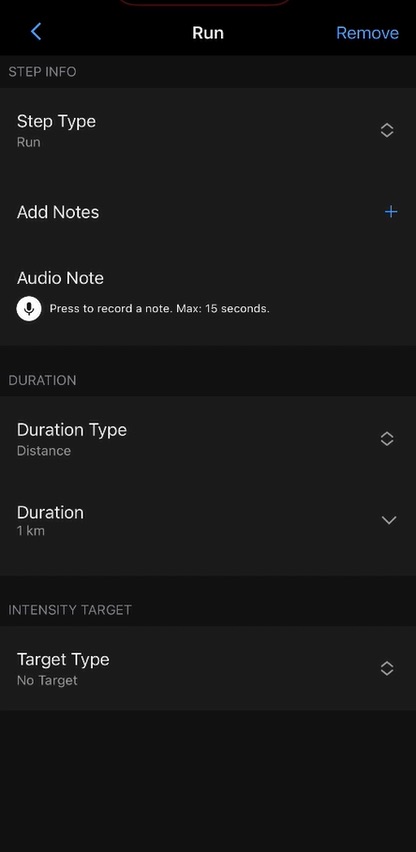
A step can last 20 minutes and target heart-rate Zone 2. Time determines how long you work; the heart-rate zone determines how hard you work.
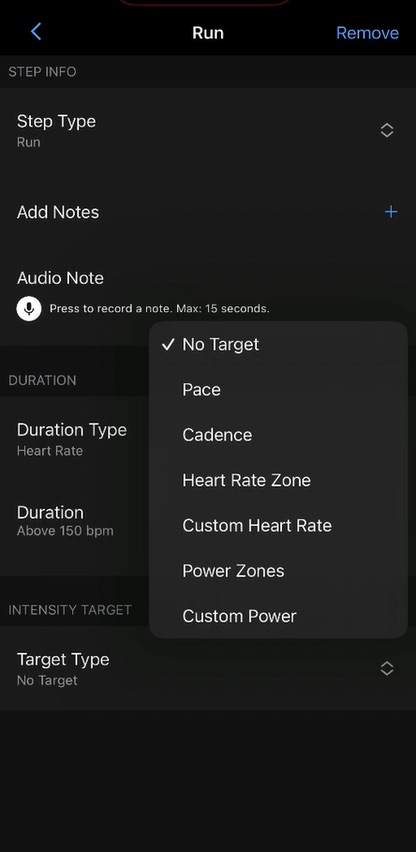
If you choose No Target, the watch shows your pace and duration, but does not warn you that you are out of a range of pace, heart rate or power.
When running you can build from a simple jog to complex intervals with pace, heart rate, cadence or power.
Depending on your watch and account settings, the menu may include:
Check zones ahead. If your maximum heart rate, threshold or power zones are not updated in Garmin Connect, training targets may be mismatches.
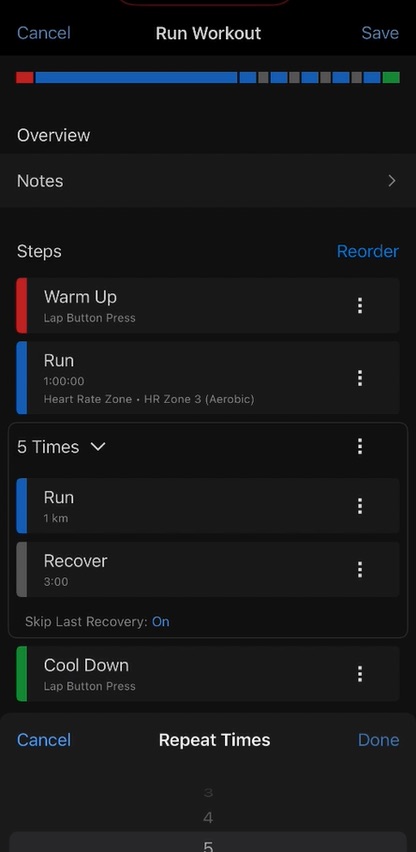
Tap Add Repeat, move the steps you want to repeat into the block and set the number of repeats. Garmin allows up to 99 repeats, but a single session can contain no more than 50 steps.
From the three-dot menu you can duplicate or remove a step, and Reorder allows you to change the order. After editing, check the colored diagram at the top: it's the fastest way to spot a misplaced step.
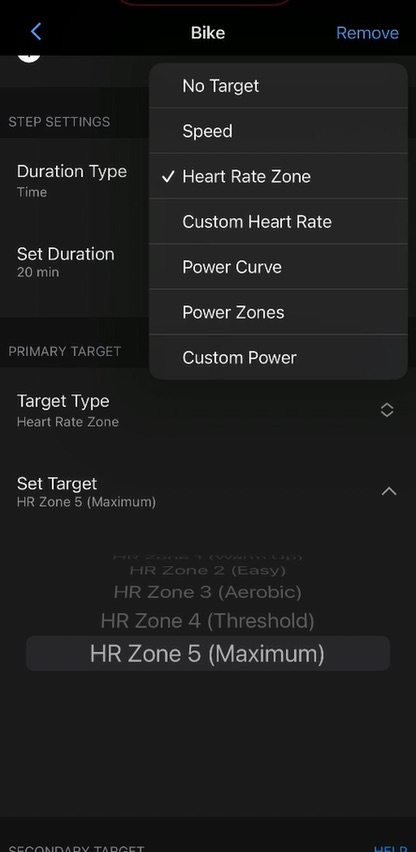
The structure is similar to running, but Garmin adds targets suitable for cycling and allows combining a main target with a secondary one.
| Target | What it controls | Practical example |
|---|---|---|
| Speed | Travel speed. | Useful on flat trails or on the trainer, but sensitive to wind and slope outside. |
| Cadence | Revolutions per minute. | Technique drills at 90–100 rpm. |
| Heart Rate Zone | Heart rate zone. | Endurance in Zone 2 or tempo in Zone 3. |
| Custom Heart Rate | Custom BPM interval. | When the standard zones do not accurately describe the goal. |
| Power Curve | A zone relative to your power curve. | Efforts built around your own capabilities. |
| Power Zones | Power zone defined in Garmin. | Endurance, tempo, threshold or VO₂max after FTP. |
| Custom Power | Manually entered wattage range. | For example 210–230 W for a controlled block. |
You can for example track a heart rate zone as the main target and a cadence of 80–90 rpm as secondary target. The combination is useful when you want to simultaneously control internal effort and pedaling technique.
For quality cycling workouts, power is usually more stable than heart rate. Heart rate responds with a delay and is influenced by temperature, fatigue and hydration.
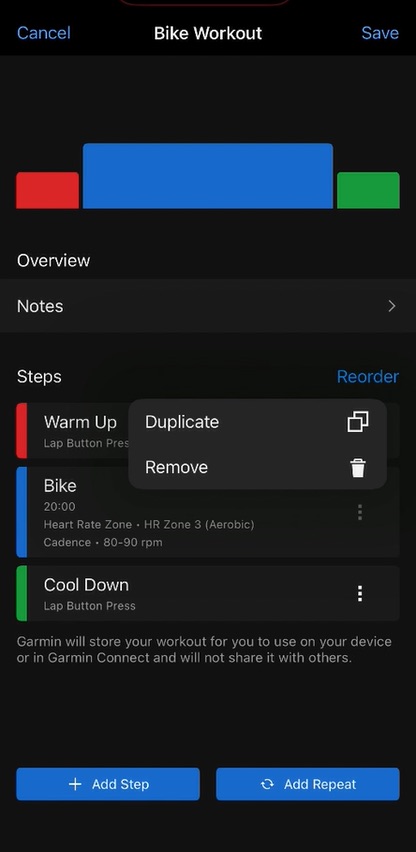
Start with Warm Up, add three 20-minute blocks in Zones 3, 4 and 5, then Cool Down. For each block you can keep the same cadence as a secondary target.
On trainer: if you use ERG mode, avoid too narrow power ranges and very sudden changes. Leave a realistic margin, especially at the beginning of each step.
Pool Swim has its own logic: the length of the pool determines the number of lengths, and each step can include procedure, exercise type, and equipment.
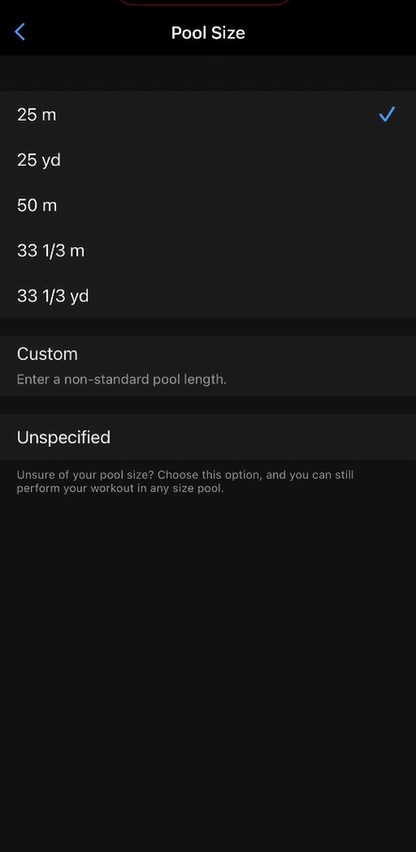
Choose 25m, 25yd, 50m, 33⅓m, 33⅓yd or enter a custom value. If you don't know the size, you can select Unspecified, but you will lose the clear conversion between distance and number of lengths.
Example: in a 50m pool, a 300m step is shown as 6 lengths.
The method performed: for example freestyle or another method provided by the editor.
You can mark the step as Kick, Pull or Drill to describe the technical purpose.
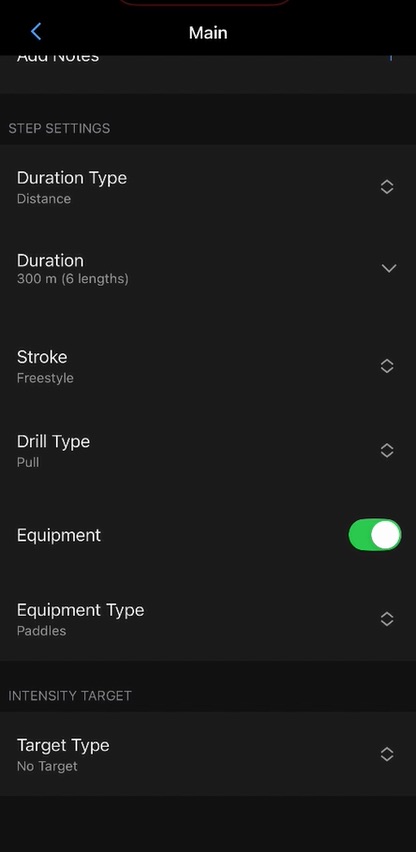
Activate the equipment and select the type, for example paddles.
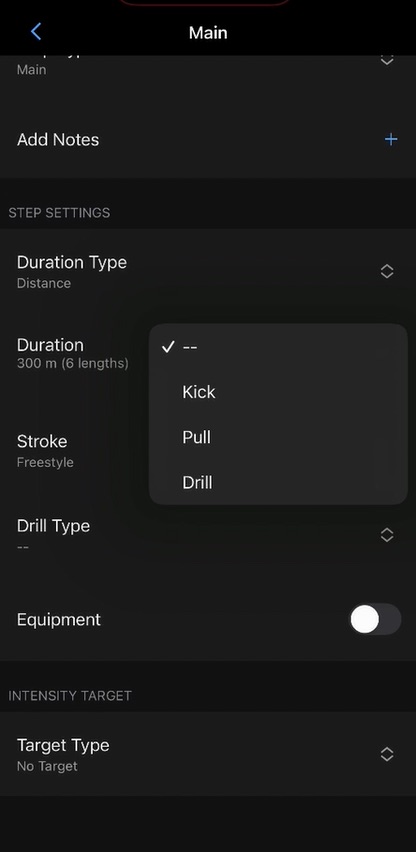
Use Kick for leg work, Pull for predominantly arm work and Drill for technique exercises. If you enable Equipment, select the accessory so that it appears on the watch.
Audio notes are not available for swim workouts. Put the important details in the name or notes of the step, as short as possible.
Depending on the step and device, you can meet No Target, Effort-Based, Target Pace or CSS-Based Target Pace. CSS is the critical swimming pace and can be used to set intensities relative to your level.
Add explicit breaks. Garmin recommends a Rest step after each swim step and after repeated blocks. Thus, the watch correctly separates the recovery effort.
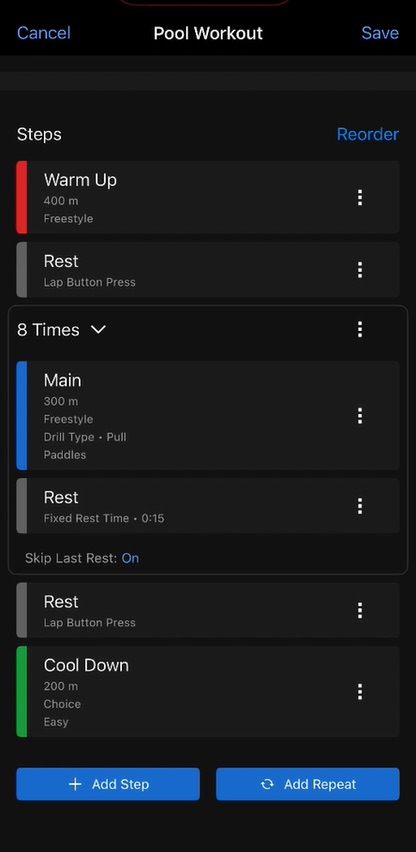
After checking the order of the steps, press Save, write a recognizable name and save again.
Garmin watches can store up to 25 unscheduled workouts, including pre-installed ones. For Edge devices, Garmin's limit is 200.
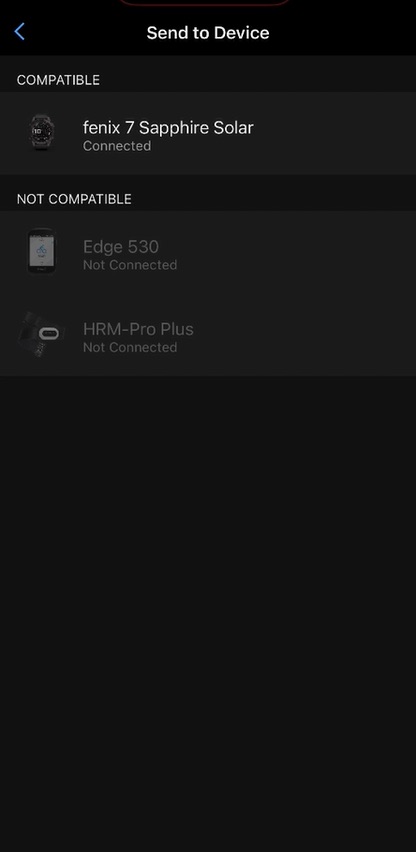
Do you want the workout on a specific day? You can add it to your Garmin Connect calendar. After synchronization, the scheduled session will appear on the device on the chosen day.
Check sync, available space, and if your device's sport profile supports that type of workout.
Some options only appear on compatible devices. Running Power, for example, requires native support.
Widen the target range. A very narrow range of pace or power produces frequent alerts.
Update max heart rate, threshold, FTP and zones before creating the session.
Use Skip Last Recovery/Rest in repeat block.
Check pool length before defining steps.
You can build them and save them in your account, but to run them guided you need a compatible device. Garmin Connect shows you compatibility when you use Send to Device.
For multisport sessions there is the Multisport category on compatible devices. For clearer control, you can also keep three separate workouts.
The fixed duration advances automatically. Lap Button Press awaits your command and is useful when warm-up, recovery or course conditions are not predictable in duration.
Critical Swim Speed is a reference pace for sustained swimming. Garmin may use CSS to calculate pace targets relative to your level.
Compatibility is checked for the exact workout type and device model. A device can receive cycling workouts, but not a workout created for running or swimming.
The interface in the captures has been verified with official Garmin documentation. For the updated list of devices and possible app changes, see: